

10. Build apps with AI tools (tidoly MCP)
You hand this project to the AI in your editor, such as Claude Code. The AI picks resources, creates the app, pushes the code, builds it, and goes all the way to an address a person can open.
A person does three things — issue a token, put it in the editor, and answer what the AI asks.
The AI connects to tidoly through MCP (Model Context Protocol). Your editor just needs to support MCP. The AI calls, within the same permissions, what you would otherwise do with buttons on the screen, so what the AI did shows up on the same screens as what a person did.
What to prepare first
| What | Why | Where |
|---|---|---|
| VPN connection | The address the AI connects to is an in-cluster address. Without the VPN it cannot be reached, even with a token | Advanced · Connect from your laptop |
| Gitea installed | The AI creates a repository for each app and leaves a work record (issues) | Chapter 5 · Install one by one |
| Project member | The token inherits the project permissions of the person who issued it | Project → Access → Chapter 3 |
Even a platform administrator's token can do nothing if they are not a project member. This is because administrator permissions are not passed to the token. If you are an administrator, first add yourself as a member of that project.
Issuing a token
- Go to the 노트북·AI 에서 dev 자원 쓰기 (Use dev resources from laptop · AI) card in Project → Overview — AI 도구에 자격 주기 (Give credentials to AI tools) is below the VPN commands.
- Enter a name in the 어디에 쓸 건가요 (Where will you use it?) field — e.g.
내 노트북(my laptop). - Click
AI 토큰 발급(Issue AI token). - Copy the
.mcp.jsonfrom the 토큰이 발급됐습니다 (Token issued) window. - Click
저장했습니다(I saved it).
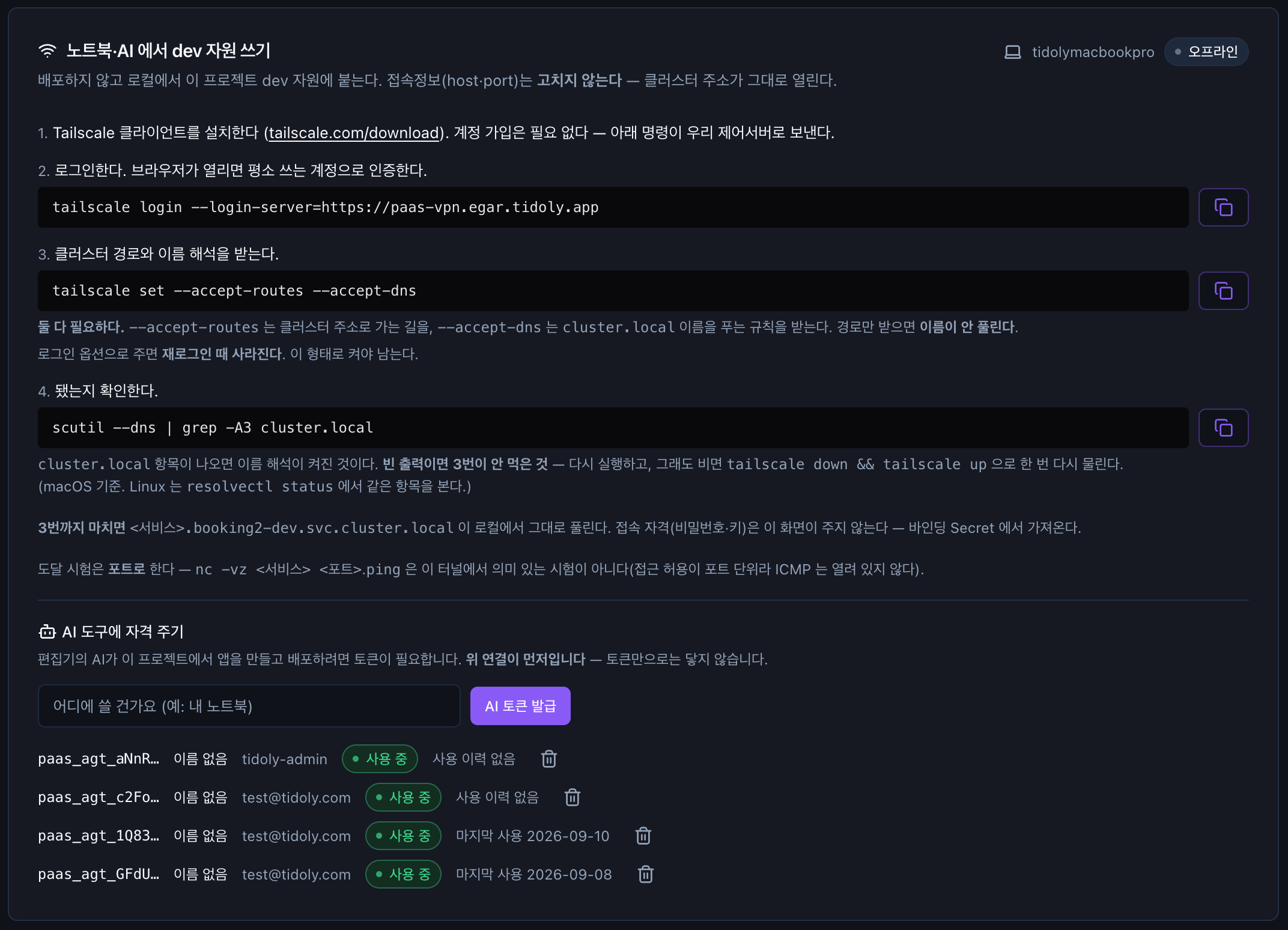
The token value is shown only once, in the issuance window
tidoly does not store the token. Once you close the window you cannot see it again; if you lose it, issue a new one. Issuing a new token leaves existing tokens active.
You can have several tokens at the same time — issue separate ones for your laptop and a server, and revoke just one.
| What a token can do | Scope |
|---|---|
| Project | The one project it was issued in |
| Environment | All environments not marked protected in this project → Splitting environments |
| Permissions | The project permissions of the person who issued it — administrator permissions are excluded |
| Duration | Until the expiry date shown in the issuance window |
Putting it in the editor
Paste the copied content as-is into .mcp.json in your project folder.
{
  "mcpServers": {
    "tidoly-cp": {
      "url": "http://control-plane.paas-system.svc.cluster.local:8080/api/v1/mcp",
      "headers": { "Authorization": "Bearer <issued token>" }
    }
  }
}
Do not commit .mcp.json to Git — it contains the token as-is.
The address is …svc.cluster.local. If you are not connected to the VPN, the name does not resolve and it cannot connect. If it does not work, start with step 4 (the check command) of How to connect to the VPN.
Asking the AI
Just describe in words the app you want to build, in your editor. e.g. "Build a to-do app for my team. It needs login."
The moment it connects, the AI also receives the tidoly usage rules. So before building, it settles the following first.
| To decide | What the AI does | If it goes unnoticed |
|---|---|---|
| App name | Informs you without asking — the name becomes the address, so it tells you the chosen name and address in one sentence | The address cannot be changed later. If you prefer another name, say so right then |
| Open it to the outside? | Asks. It does not recommend either way | An internal app stays open to the internet |
| Must data survive a redeploy? | Asks — Database if it must survive, otherwise Cache | Anything stored in Cache disappears on redeploy |
| Keep connections open long? (real-time updates) | Asks, and turns on long connections if needed | Connections drop every 60 seconds |
| Can it run as multiple copies? | Asks, and attaches Cache to share state if needed | Some people may not see certain things |
| Is login needed? | If needed, attaches login (SSO) right after creating the app | The app comes up once without login settings and has to be redeployed |
Anything written in your request is not asked again. It counts as decided only when written out explicitly, like "make it accessible from the internet". "So my team can use it" does not decide whether it is public, so the AI asks again.
The order the AI works in
| Step | What it does | Where a person sees it |
|---|---|---|
| 1 | Checks what can be installed and what is already installed on this site | — |
| 2 | Installs the needed assets (e.g. PostgreSQL) | Asset list in Project → Overview |
| 3 | Creates the app slot and writes down the design reasons | Project → Applications |
| 4 | Creates a repository in Gitea and posts the design reasons from step 3 as an issue | Gitea repository · issues |
| 5 | Writes the code and runs it on the laptop against the real resources | — |
| 6 | Pushes the code, builds and deploys | 빌드 (Build) tab on the app screen |
| 7 | Creates the address and tells you that address | Editor conversation · app screen |
| 8 | Closes the issue, noting what blocked it and how it was solved | Gitea issue |
The AI's job goes as far as getting the app into a first usable state. It is done when the address is out and the issue is closed. After that, clone the repository and develop as usual.
Builds need no Dockerfile. As long as there is a file such as package.json · go.mod · pom.xml · requirements.txt, the language is detected automatically → Chapter 6
If you ask it to create an app with a name that already exists, it does not build a new one but reads that app's issues and picks up from there.
Tools the AI uses
This is the list of functions the AI calls. A person never calls them directly; use it to gauge what the AI can do.
| Category | Tool | What it does |
|---|---|---|
| Find | catalog_search | Finds assets that can be installed |
resources | Shows installed assets and registered external resources | |
| Assets | install | Installs a Catalog asset |
status | Shows the status of instances and apps. Can also wait until they finish | |
| Create apps | app_create | Creates an app slot without code. Needed resources are attached here too |
app_deploy_from_git | Deploys a Git repository that already has code, directly | |
app_oidc | Attaches login (SSO) to the app | |
app_env | Changes app environment variables (only the specified keys) | |
| Code | app_scm_repo | Creates the app repository in Gitea |
app_scm_credential | Attaches a credential to clone·push that repository — the token value is not returned | |
app_commit | Pushes a few files as one commit | |
app_local_env | Gives a 5-minute, one-time address to download an environment variable file for running on the laptop | |
| Deploy | app_build | Builds and, if successful, deploys |
app_expose | Creates an address to open the app from outside | |
app_webhook | Adds a hook to the repository so pushes by people trigger automatic builds | |
| Check | app_logs | Shows build · deploy · runtime logs |
app_trail | Shows the history of how this app was built | |
| Record | app_issue | Opens, comments on, and closes issues recording the reasons for work |
What it cannot do
| Cannot do | Instead |
|---|---|
| Delete — there are no tools to delete apps · instances · addresses | A person cleans up on the screen. The AI notes in the issue what it created for testing (only environment variables can be deleted by the AI) |
| Work in protected environments | These are not included in the token. A person applies changes to production → Chapter 6 · Environment promotion |
| Register external resources | Once a project administrator registers them, the AI uses them → Chapter 7 |
| Receive secret values | Values such as DB passwords are not returned to the AI. They are also redacted from logs |
| Other projects | A token works only in the one project it was issued in |
Reviewing what the AI did
| Where | What you see |
|---|---|
| Gitea → app repository → issues | Why it was built this way · what blocked it and how it was solved |
| Project → Applications → app | Build history · deployment status · address |
| Project → Overview | Assets installed by the AI |
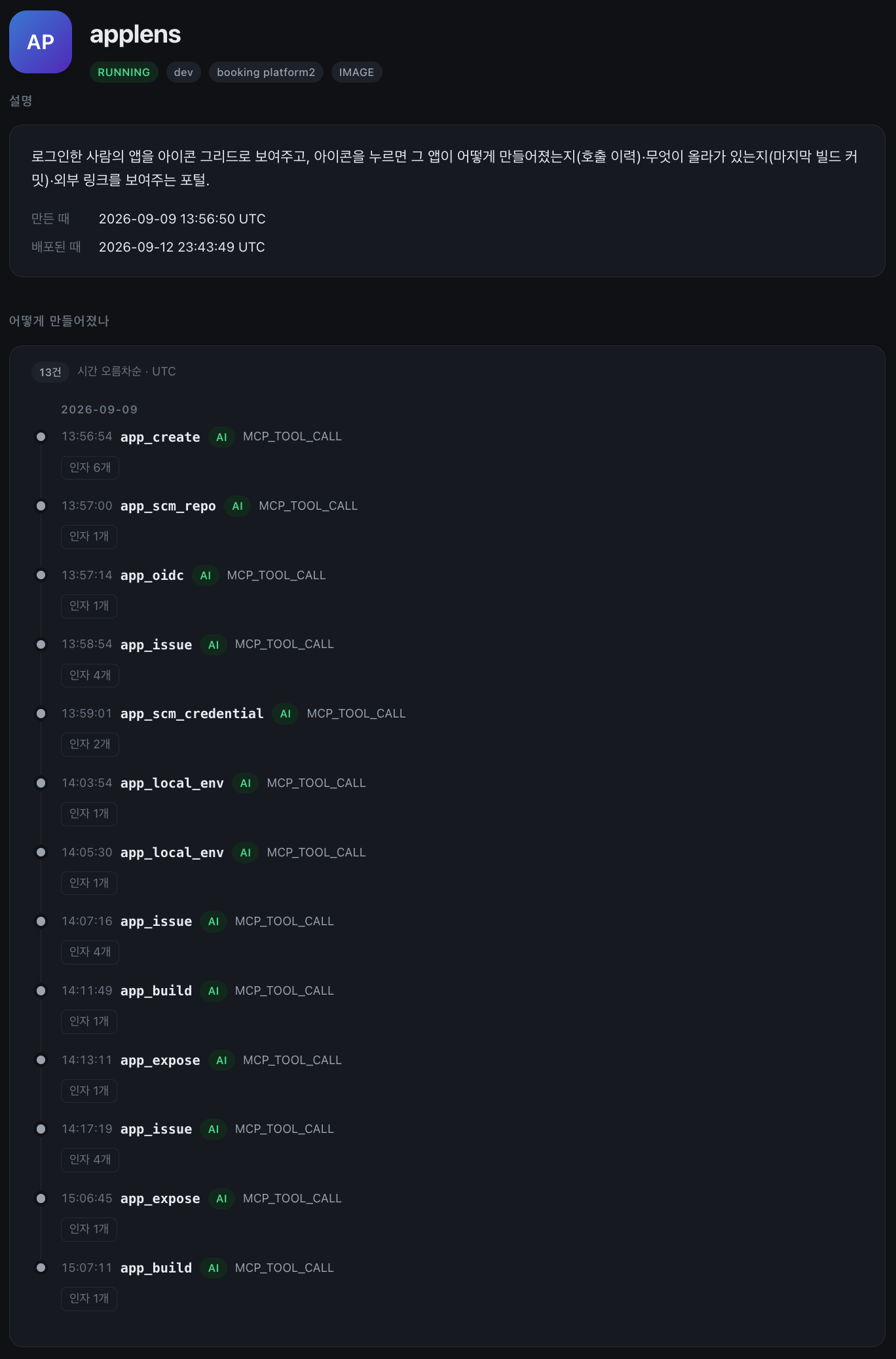
If you ask the AI "summarize what you have done so far", it answers by reading the actual call history (app_trail), not its memory. What a person did on the screen and what the AI did appear in the same history, distinguished from each other.
Revoking a token
- Find the token in the list under Project → Overview → 노트북·AI 에서 dev 자원 쓰기 → AI 도구에 자격 주기.
- Click the trash icon — it is blocked from the next request.
The list shows the token prefix · name · issuer · status (사용 중 (Active) · 회수됨 (Revoked) · 만료 (Expired)) · last used date. A token marked 사용 이력 없음 (Never used) is a clue for deciding whether it is safe to revoke.
Next → Gitea MCP