

Adding storage
The default is the server's local disk. While you run a single server, that's enough. Change it only if you hit one of the following.
| Situation | Limit of the default |
|---|---|
| You want a bigger disk | The size you set at first stays fixed |
| Several places need it at the same time | Only one place can attach at a time |
| You plan to add servers later | The volume lives only on that server |
| What you have | Method | What it solves |
|---|---|---|
| A NAS or file server | Attach NFS | As much as its capacity · concurrent use |
| Nothing | SeaweedFS | All three |
Attach NFS
If you enter the NFS server address and path during installation, that storage becomes selectable. If you don't, it's simply skipped and local disk is used.
| What you enter | |
|---|---|
| Server address | e.g. 192.168.0.50 |
| Exported path | default /mnt/data/nfs-share |
| Storage name | default nfs-client — the name shown when choosing it on the asset install screen |
The export must already be set up on the NFS server — the PaaS doesn't create it. Read and write must work from the PaaS server. To check in advance:
showmount -e 192.168.0.50If storage with the same name already exists, it is left as is. To change it, clean up the existing one first.
SeaweedFS
This is for servers with neither a NAS nor cloud storage. It sets up storage inside the server.
| Capacity grows on its own | The size is not fixed |
| Several places at once | Multiple assets share the same volume |
| S3 storage | As a backup destination. No cloud account needed |
You don't have to get the size right in advance. Rather than growing one big disk, it pools multiple storage spaces, so when it runs short it grows by attaching new space. Decide only "how much to use" and the rest takes care of itself.
It's especially suited to things whose size you can't predict, like photos, videos, and documents. If you start on the default storage and it fills up, you have to move the data, and that's the most tedious part.
Nothing needs to be prepared on the server — unlike NFS, no extra packages are needed.
However, it runs storage split into several roles, so it may be overkill for a single server. If local disk is enough for now, don't bother switching.
Little real-world usage yet
It's in the Catalog and can be installed, but we have not run concurrent use from multiple places and backup integration enough. Before moving important data, we recommend trying it out once.
Don't change storage that's already in use
If you change it after data has accumulated, existing data doesn't come along. Deciding at the start is cheapest.
You choose it in 저장 공간 (Storage) on the asset install screen.
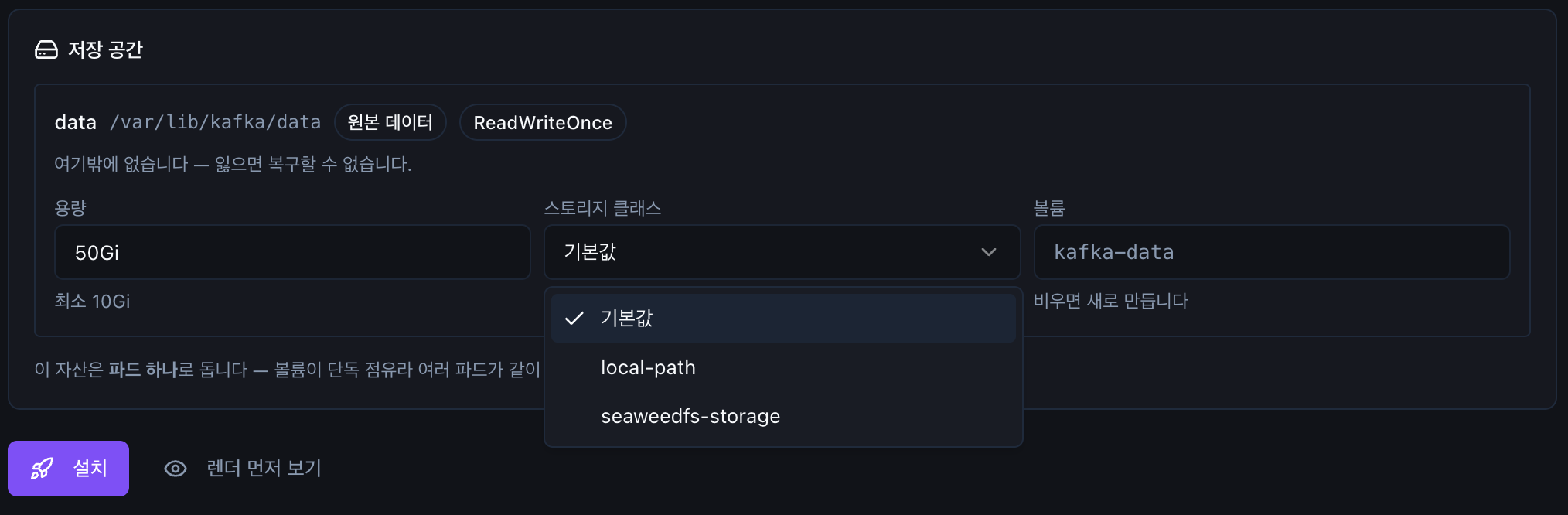
If you leave 기본값 (Default), this server's disk is used. If you installed something else, it appears in the list too.
Leave the volume name empty to create a new one. Enter an existing volume name to keep using it — this is how you reattach data left behind by a deleted app. → Chapter 3 · Data left after deletion