

Splitting environments
When you create a project, it has one environment, Prod. You can use it as is. Add more only when you want separate dev or qa.
When to split
| In this situation | |
|---|---|
| You need a place to test first without touching what's in production | Split |
| There's a step where someone else reviews before deploying | Split |
| You work alone, or there's only one thing to deploy so far | Leave it as is |
Adding one
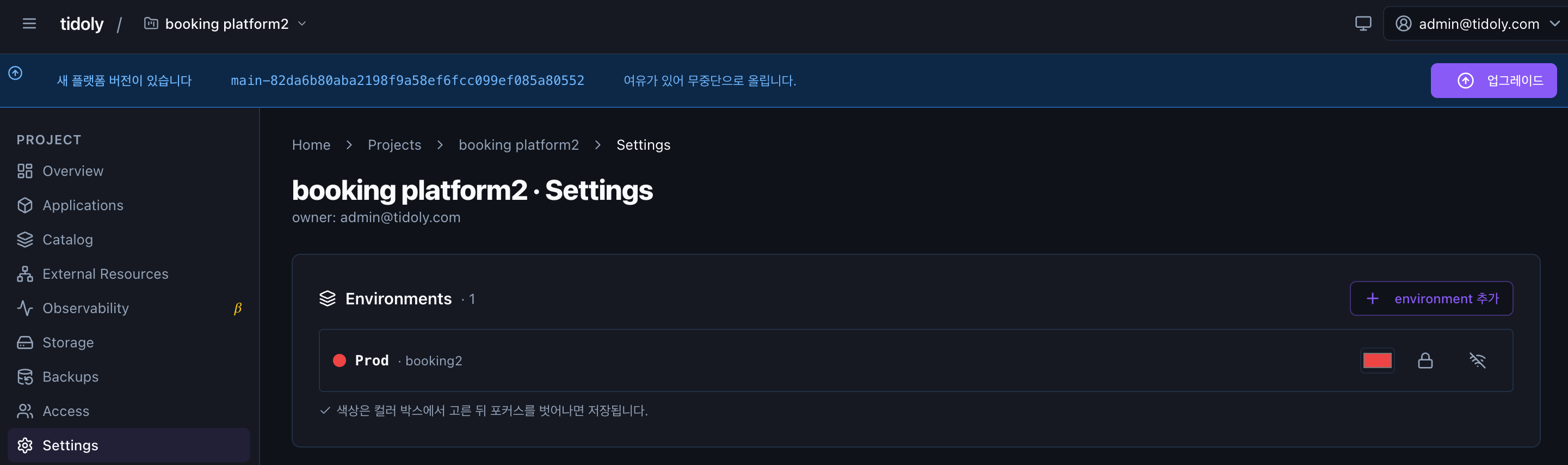
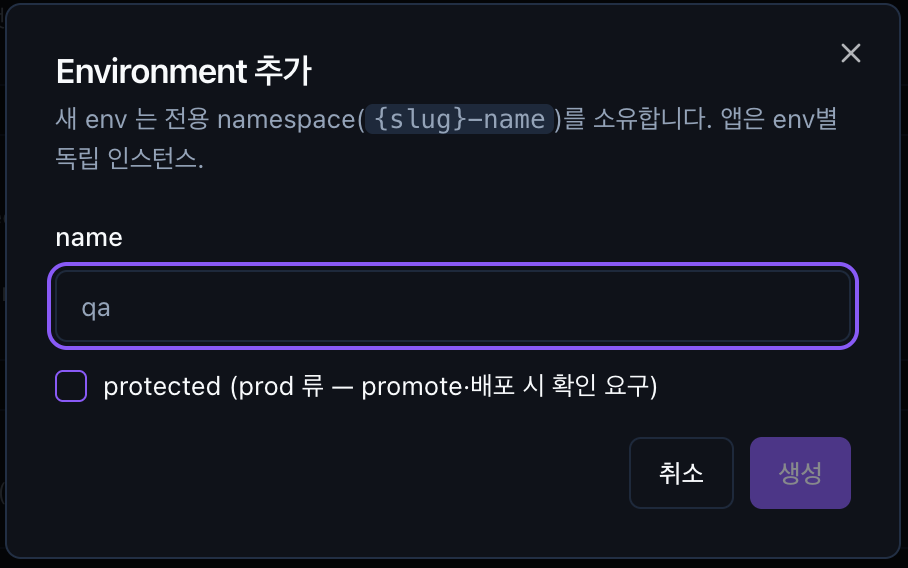
Project → Settings → Environments → environment 추가 (Add environment)
| What you set | |
|---|---|
| name | Short, like dev · qa |
| protected | When checked, confirmation is required on promote and deploy. Turn it on for production environments |
Each environment gets its own space ({project}-{environment}). In the screen above, booking2-dev is created next to booking2.
Apps run separately per environment. Even the same app in dev and in prod are separate, and their resources don't mix. → Chapter 8 · Connect resources
Switching between them
With two or more environments, an environment switcher appears at the top. When you switch, only that environment's items are shown.
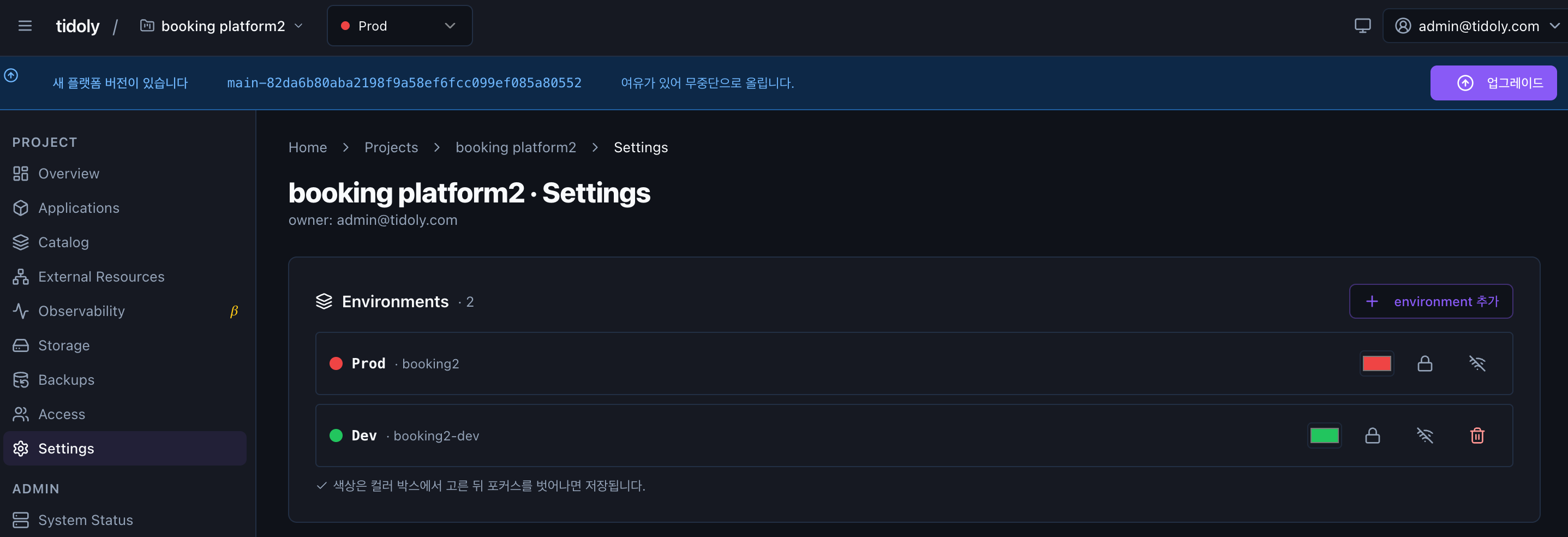
You can assign a color to each environment. It shows at a glance which environment you're looking at, so production is often set to an eye-catching color like red. Pick it in the color box; it saves when focus leaves.
Connecting from your computer
Click the Wi-Fi icon on an environment row to allow connecting to that environment directly from your laptop. When turned on, 로컬 연결 (Local connection) appears next to the name.
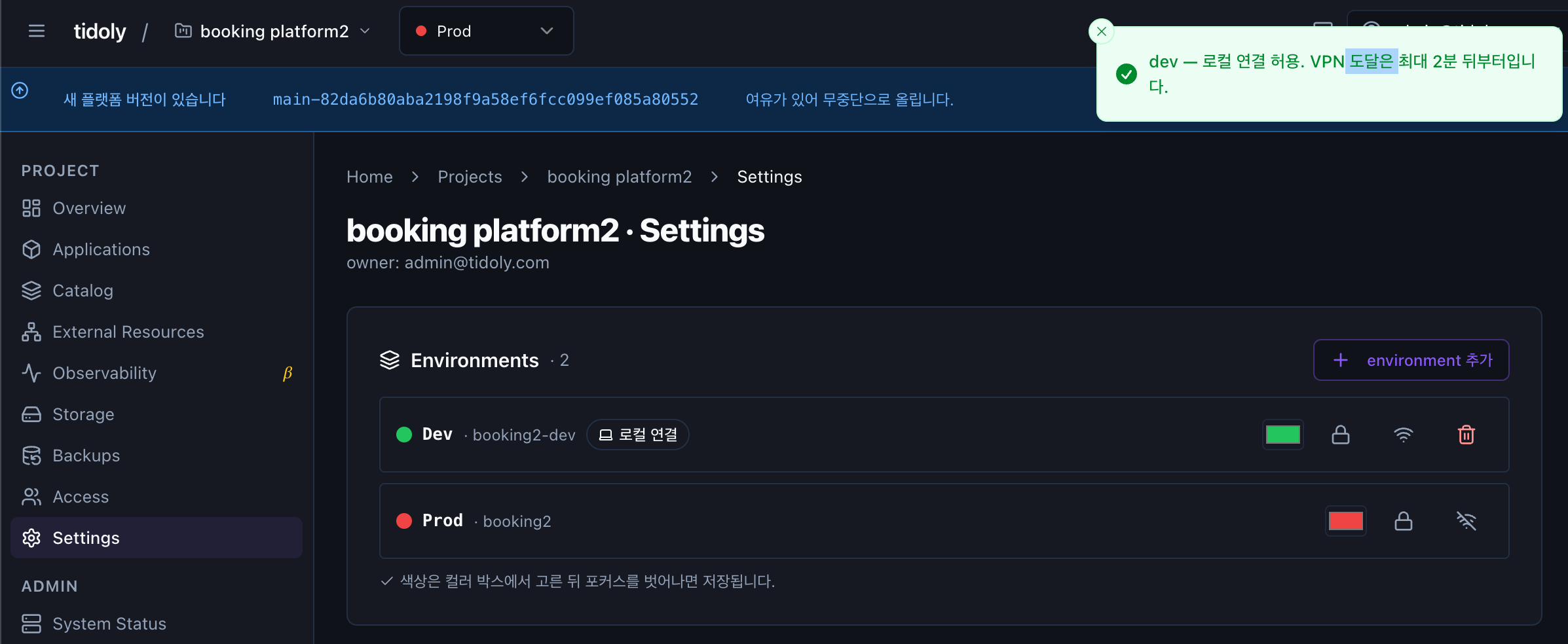
After turning it on, VPN reachability takes up to 2 minutes. If it doesn't connect right away, wait a little.
It's safer to keep production off. That's why Prod is off in the screen above.
How to connect and what to turn on first → Connect from your laptop
Deleting an environment removes what's in it
Prod can't be deleted. Environments you added can be deleted, but apps and assets deployed in that environment are cleaned up with it.
How to promote what you verified in dev to prod → Chapter 6 · After deploying