

4. Install a bundle at once
With tidoly you do not have to find and install services one by one. Select a bundle that fits what you want to do and install it, and the services you need are set up together. Admin → Install Wizard
If you prefer to pick services yourself and install them one at a time → Chapter 5 · Install one by one
The default setup is a single click
The settings shown in the Install Wizard are items you can change if needed. But you do not have to decide each one from the start.
tidoly has prepared default configurations that are verified to work together, so unless you have a specific reason, just select a bundle and install it as is.
Choose the environment you need
The following bundles are currently available, by purpose.
| Bundle | When to use it | What gets installed |
|---|---|---|
| dev-solo | Individual developers — when you want everything for development, from a repository to a database, ready at once | Repository · database · cache · object storage |
| dev-team | Small development teams — when you want to check service status and metrics together | Repository · availability · metrics |
| business-ops | Small businesses — when you want to set up business management and file sharing at once | Odoo · Nextcloud |
It's fine if the bundle you want is not there
Services not offered as a bundle are all in the Catalog. Just pick the services you need and install them one by one.
Whether you install via a bundle or individually, the result is set up in the same tidoly environment.
Install in 3 steps
Select a bundle — select the bundle for the purpose you want.
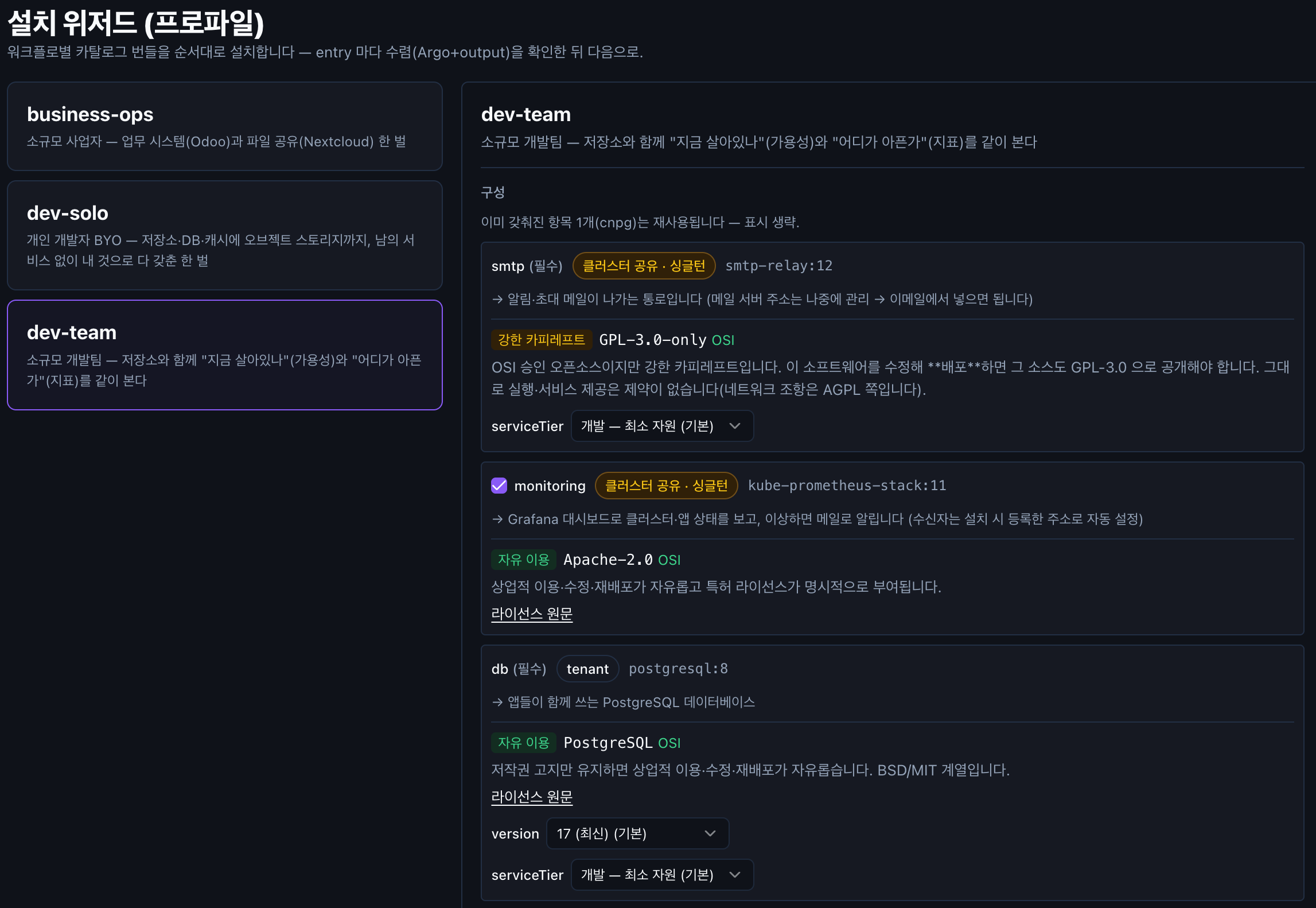
Review the configuration — you can use the default settings as they are. Only when needed, turn services on or off, or change the version or size (
serviceTier). Items marked(필수)(Required) cannot be removed from the bundle.Start the installation — once you start, tidoly installs and connects the required services in order.
Each item's status changes in the order 대기 (Pending) → 수렴 대기 (Waiting to converge) → 수렴됨 (Converged). While the installation is in progress you can also check the logs.
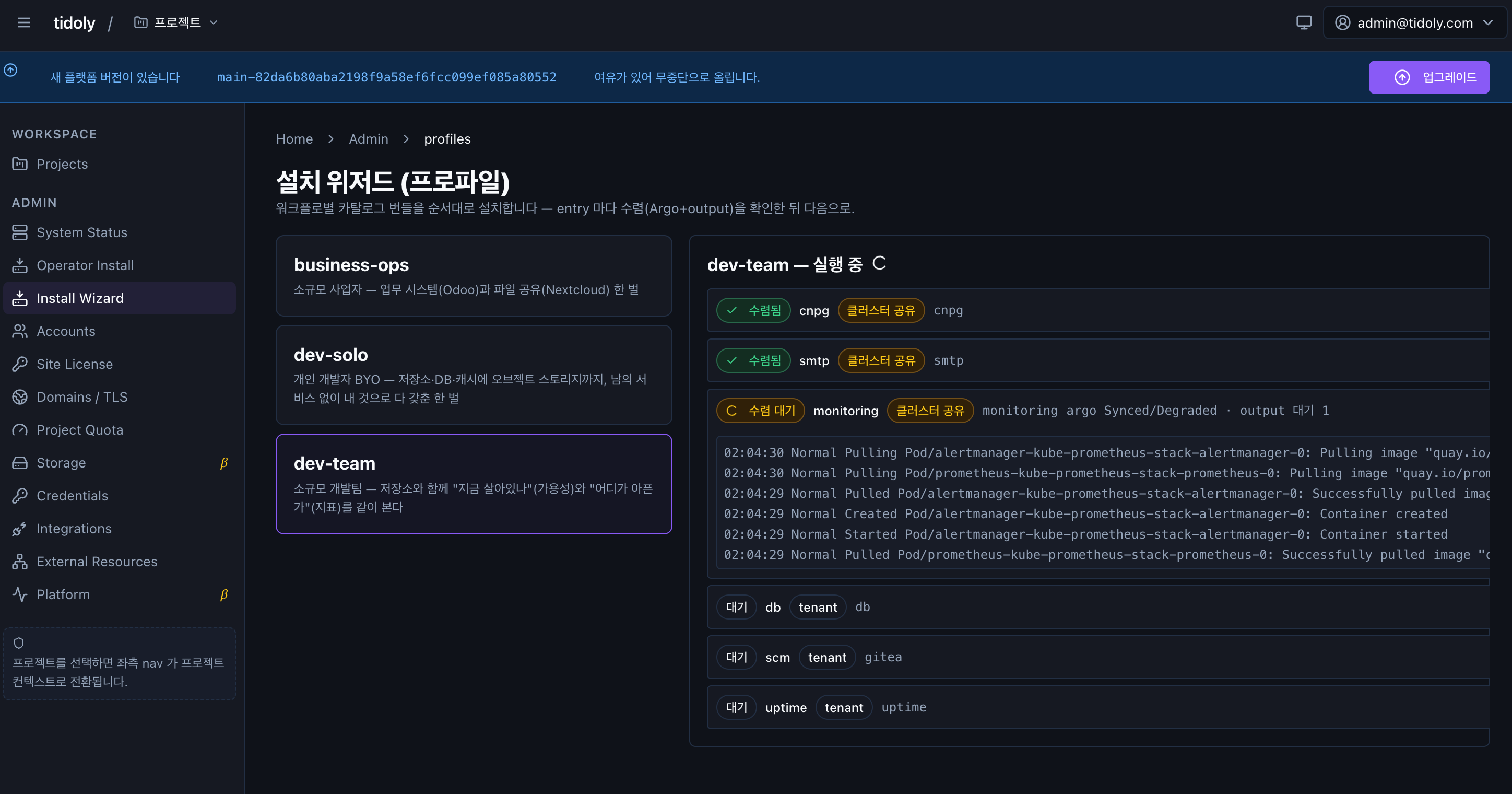
Even if the 수렴 대기 status lasts a long time, the installation has not stopped. You can see right away in the logs what work is currently in progress.
Things already installed are not installed again
If the cluster already has an asset you need, tidoly detects it and reuses the existing asset. For example, if cnpg is already installed, the configuration screen says "이미 갖춰진 항목 1개(cnpg)는 재사용됩니다 — 표시 생략" (1 item already in place (cnpg) will be reused — not shown) and does not show that item again.
After installation, that asset is shown as 클러스터 공유 (Cluster shared). So the same asset is never installed twice. → Chapter 5 · Things you install only once
Installed services are gathered in a dedicated project, solutions. If the project does not exist, tidoly creates it automatically.
You don't connect services yourself either
Even when services in a bundle need to connect to each other, you do not have to enter or copy connection details by hand.
Which service is prepared first and which services connect to which are defined in the bundle in advance. When you select a bundle, tidoly handles the installation order and the connections.
→ Chapter 8 · Connect resources
Even after installing with the default settings, you can check and change settings on each service's detail screen. You do not have to decide everything at first install.
You can check licenses before installing
Each service shows the license it uses and what that license means. So you do not have to look up licenses separately every time you adopt a new service.
| Label | Meaning |
|---|---|
자유 이용 (Free to use) | A license that allows commercial use · modification · redistribution. (Apache-2.0 · PostgreSQL, etc.) |
강한 카피레프트 (Strong copyleft) | A license that requires you to publish the source under the same license if you distribute modified software. (GPL-3.0, etc.) |
You can also read the full license text right below each license description.
Use it right after installation
When installation is complete, click 열기 → (Open →) to go to each service's detail screen.
On the detail screen you can check the following for each service:
- Access address
- Settings
- Metrics
- Logs
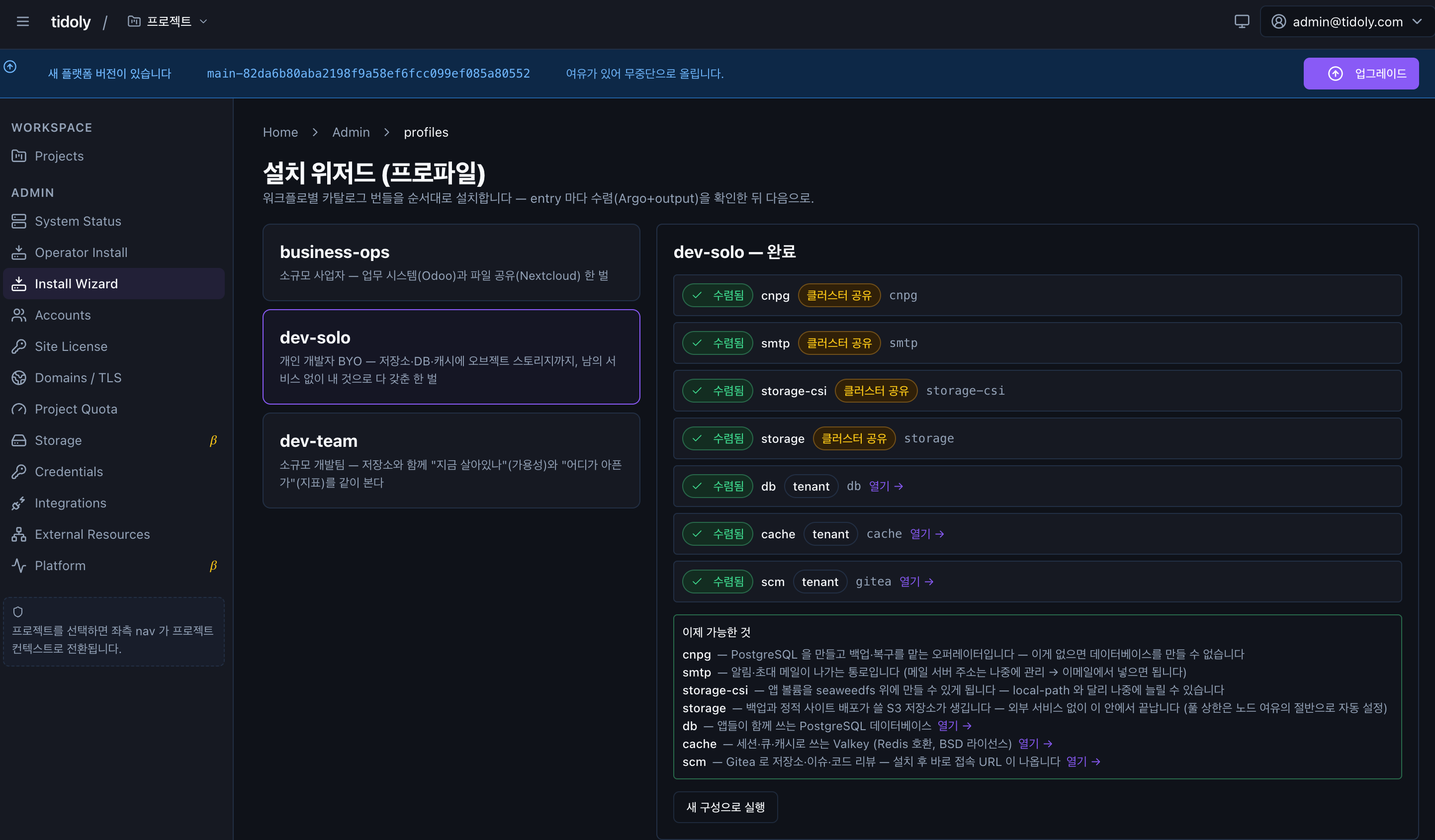
Choose the environment you need → review → install. tidoly takes care of the rest.