

Connect from your laptop
Without deploying, connect from your own computer directly to resources such as the project's database.
You don't change connection info. The addresses and ports used inside the cluster open as-is, so you don't need to touch the settings of code you run locally.
Turn on first
| Where | What |
|---|---|
| Admin → Operator Install → Tidoly Platform | Install tidoly-vpn. Only needed once |
| Project → Settings → Environments | Turn on the Wi-Fi icon for the environment to connect to → Splitting environments |
When both are done, the project Overview shows VPN 연결 — 노트북에서 <환경> 자원 쓰기 (VPN connection — use <environment> resources from your laptop). Copy the commands shown there and use them as-is.
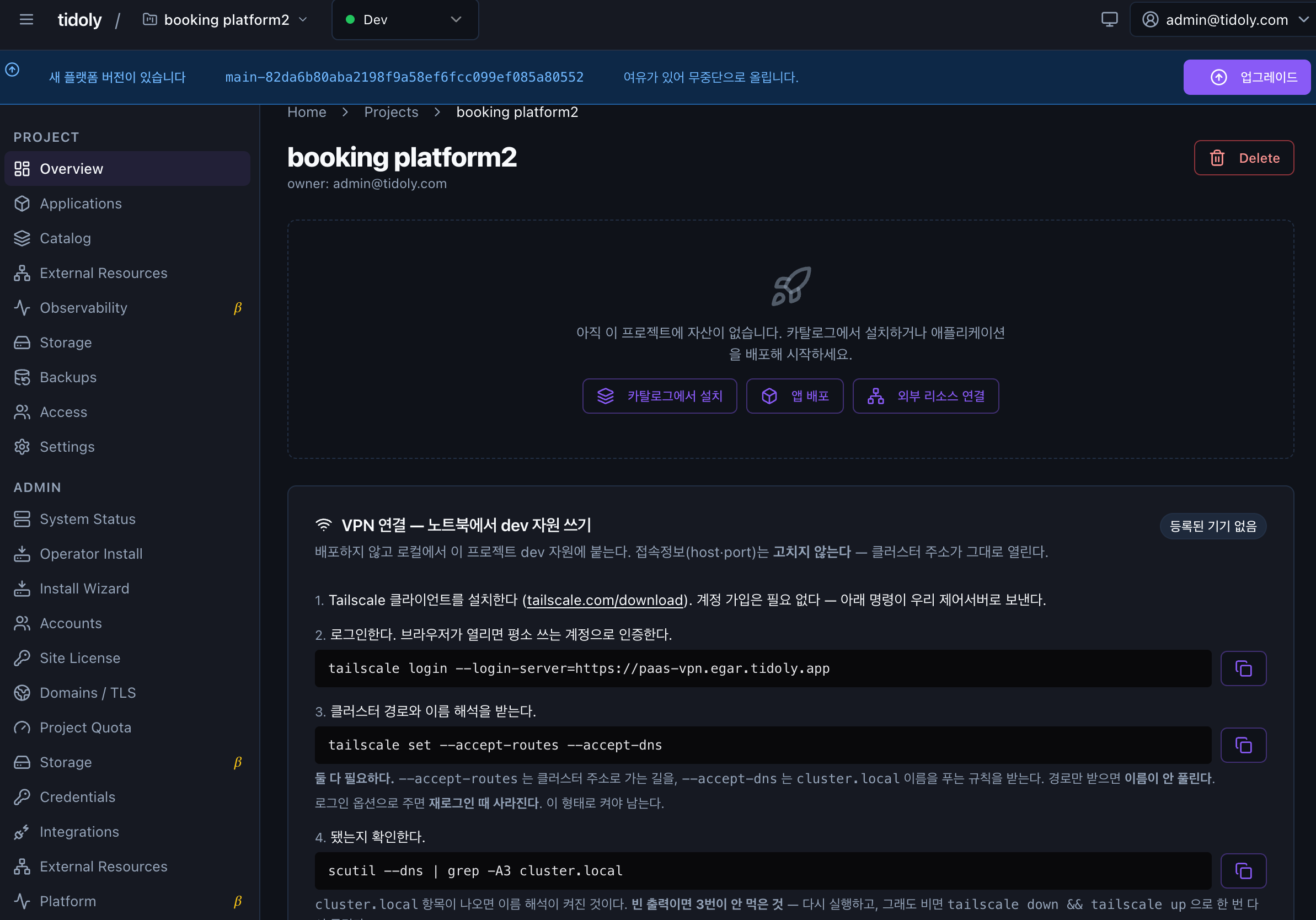
How to connect
- Install the client — tailscale.com/download
- Log in — paste the login command from the screen, an authentication URL appears, and you finish in the browser with the account you normally use.
- Accept cluster routes and name resolution —
tailscale set --accept-routes --accept-dns - Check that it worked — if the check command shows
cluster.local, it worked.
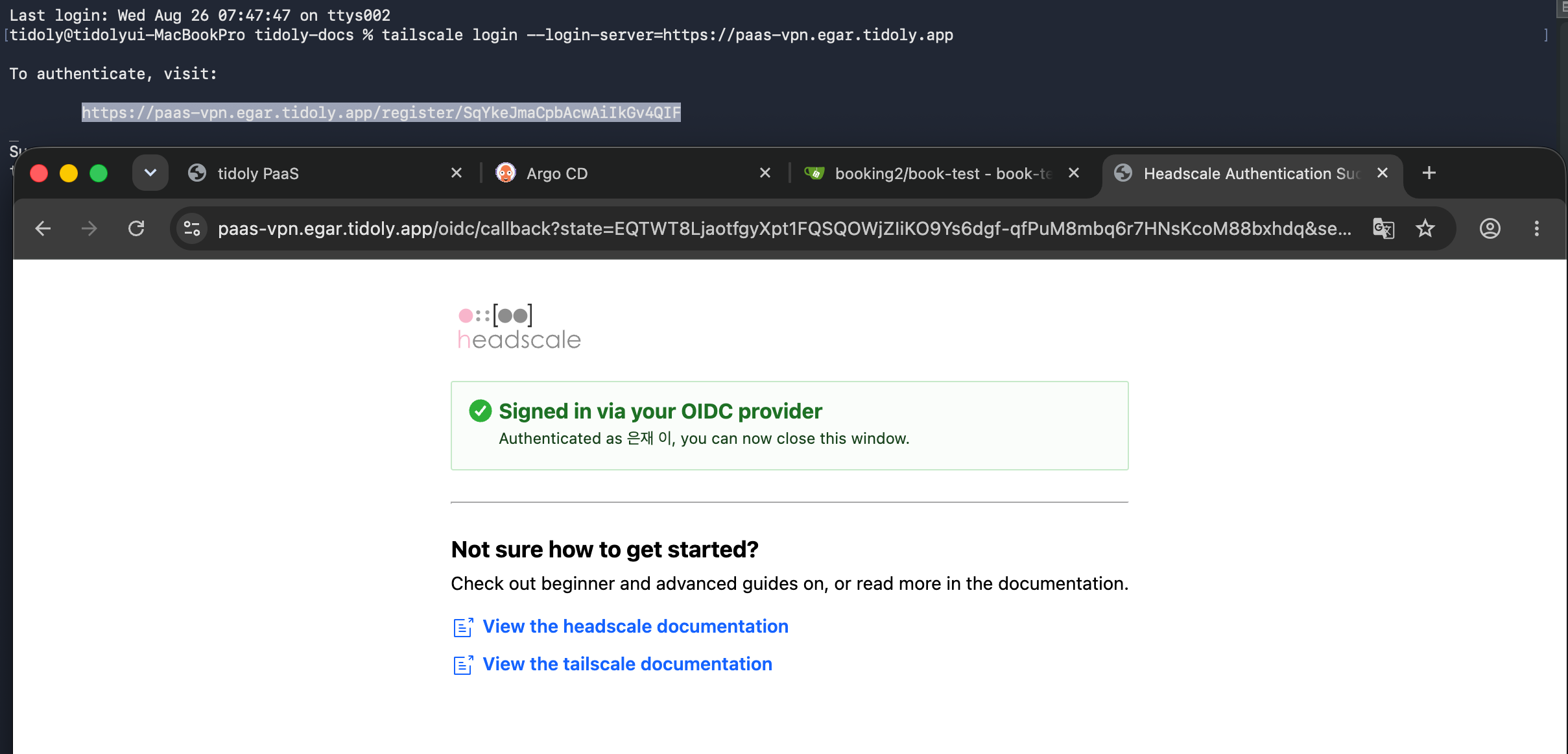
You don't sign up for a Tailscale account. Only the client is theirs; the login command points to our control server, so authentication finishes with your usual SSO account.
Both options in step 3 are required — --accept-routes accepts the route to cluster addresses, and --accept-dns accepts the rules for resolving names. With only the route, names don't resolve.
Why step 3 is a separate command — if you add them as options at login, they disappear the next time you log in. So they are set separately as a setting.
If step 4 prints nothing, step 3 didn't take effect. Run it again, and if it's still empty, bring it up once more with tailscale down && tailscale up.
Even if it shows "registered · online", nothing opens without step 3
The screen only tells you that it is registered and connected. Whether you accepted cluster routes is a setting on your computer, so the screen can't know.
If it's registered but nothing opens, you skipped step 3.
Who can connect
Any project member. No need to request or be granted permission separately.
Access is created automatically from project membership, so when someone leaves the team, their access goes away too.
What doesn't work
You can't connect to multiple sites at the same time
Each site's internal cluster address range is the default, so they are identical. If you open two from one computer at the same time, it can't tell which one traffic should go to.
Use one at a time.